
Updated November 18, 2026 · IPTV Stream Provider Team
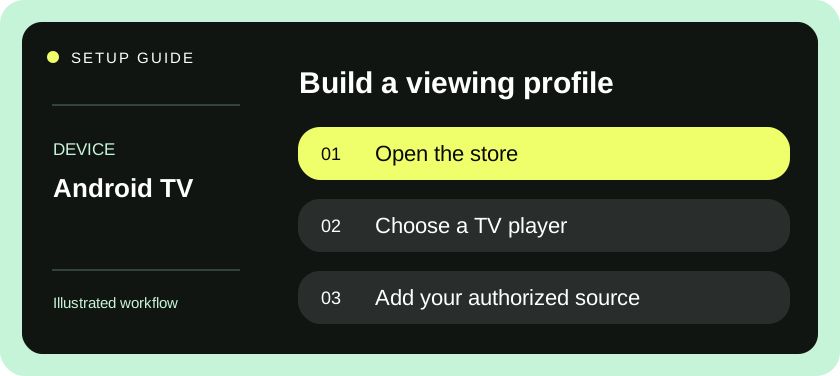

HOT Player on Android TV / Google TV
Search for HotPlayer in your TV’s Google Play Store. On Android TV boxes that support APK installation, the publisher also offers its own installer and Downloader code 395800.
Official Android download ↗After installation — open Settings or Info in HOT Player and scan the QR code to add your authorized playlist. Player activation and streaming subscriptions are separate.
Find the software running on your box
IPTV on Android TV can look different on two boxes plugged into identical televisions. Android TV and Google TV offer a television-oriented interface and apps made for directional navigation. A box advertised simply as an “Android box” may run a different interface intended for touchscreens. Start at its home screen and find About under system or device settings. Copy the model and software version before asking which player to install.
Check which remote controls the box. The power and volume keys may control the display while Home and Back control the box. If Home takes you to your TV manufacturer’s own marketplace, select the box’s HDMI input and use the remote paired to the box. Built-in Android TV and an external Google TV streamer are separate installations even when both display similar menus. Pick the installation you intend to keep.
Prepare an account, a player and a connection
Open the Apps area and confirm you can search and install software using the account on the device. On Android TV you may see a Play Store app. On Google TV use the Apps tab or app search. A result from general entertainment search may be a film or a recommendation; look for an actual app listing showing its publisher. Children’s profiles and account restrictions can change what appears.
Get the provider’s private login instructions in a place you can read beside the screen. Note whether they contain a playlist URL, separate server credentials, or instructions for pairing a device code. Choose a player that explicitly accepts the format you have. Some installations offer an app trial or paid upgrades. Read the terms in the listing before assuming a feature such as guide import or a second profile is included.
Install and import the first playlist
- Open app search on the television device, enter the player name and inspect the match. Check the publisher and any compatibility notice. The presence of a similarly named app on your phone does not guarantee a version for the TV.
- Select Install and open the finished app. Use the directional pad to reach its settings and profile controls. If a button requires tapping an invisible area or dragging with a pointer, reconsider the player before entering private details.
- Choose the appropriate profile type. A server login needs its individual fields. An M3U input expects the complete link or a supported local playlist file. Give this setup a simple display name that will still make sense after a renewal.
- Enter the details exactly, keeping the scheme and port in a supplied server address. Be careful with keyboard suggestions that add a space or change capitalization. If the keyboard includes a show-password option, use it privately to check an uncertain character.
- Save and wait for channel groups to appear. If the guide is separate, enter the supplied guide address in the EPG section after the channel list works. A populated guide and a working video feed are separate checks.
- Play a live item and then another in a different group. Find the control to stop playback. Go Home and reopen the app to confirm that your profile, favorites and display settings survive a normal exit.
Check the picture through the HDMI chain
The display mode reported by the television describes the signal arriving over HDMI. A box can output a high-resolution signal while playing lower-resolution material. If the player has stream information, inspect that separately from the TV’s input banner. Compare a detail such as small captions or a slow pan across the same source rather than judging quality by a menu animation.
If the screen goes blank when changing output modes, return to a previously supported setting using the device’s recovery prompts. Useful support details include whether the box connects directly to the TV or passes through a receiver, splitter or soundbar. A receiver can limit modes even when the box and television both list them. Avoid buying new equipment until you have tested the existing direct connection, if your setup permits it.
Evaluate the remote from the sofa
Choose the most common tasks in your household. Find a favorite, open a schedule, turn on captions and switch back to the previous item. Run through that sequence using only arrows and Select. A phone remote can be convenient for typing during setup, but a daily viewer should be able to complete those actions with the physical remote if that is what they will use.
Look at focus visibility from your usual seat. Some dense list layouts are difficult to read at a distance even when the player technically runs well. Try the player’s list size or interface scale if available and ensure selected rows remain visible. Before changing system-wide text or display scaling, check another app; a system change can affect viewers who never use the IPTV player.
Troubleshoot one layer at a time
| Symptom | What to verify |
|---|---|
| App listed on phone but missing from TV | Search from the TV’s own account and ask for a TV-compatible alternative. |
| Sign-in accepted but guide times look wrong | Check the operating system time zone before applying an app guide offset. |
| Sound plays with a blank picture on one item | Note the item, selected audio track and available video information for support. |
| Directional pad never reaches a button | Confirm the installed build supports TV navigation. |
| App closes during initial import | Check available storage and request a smaller test list. |
| One TV stops when another starts | Stop playback elsewhere and check the simultaneous connection limit. |
When testing buffering, keep the feed, player and time window constant and change only the network path if possible. A wired test can be valuable even if you plan to keep Wi-Fi: it separates the wireless hop from the rest of the route. A successful wired test does not tell you which Wi-Fi setting to change, but it narrows the next investigation. Repeat on a second unrelated feed before reporting a platform-wide problem.
Keep a record for the next update
Save the model name, player publisher, profile type and the location of your provider’s setup email. Keep private URLs and passwords out of screenshots shared with other viewers. After a system update, first verify that an ordinary app still plays and that the player is still installed. Re-enter credentials only when the profile is actually missing or the provider has changed them.
If you replace the box, ask whether the provider needs to move a device association and whether an app purchase follows the same account. Closing a stream on the old box gives a single-connection plan a clean test on the new one. Once the replacement works, use the old player’s sign-out or profile removal controls before giving that hardware to another household.
Document a family-room test
Pick a ten-minute segment during the time the household normally watches. Ask one person to select a program and another to change the audio language or enable captions. With the remote back on the table, let the segment play without interacting. Note whether the first picture was slow, the video stalled midstream, or the menus failed to respond. Those are different results even if the viewer describes all three as “slow.” Repeat after a normal restart before deciding the device needs replacement.
For examples of the different store interfaces, see Sony’s Android TV and Google TV installation guide.
Questions & answers
Can I use the mobile version of an app on my television?
Look for a compatible television listing. Touch-oriented controls can be unreachable with a directional remote even if a phone app uses a familiar name.
Should I enter an M3U address under EPG?
Enter the playlist in the playlist field. The EPG field accepts separate schedule data when the provider and player support it.
How can I compare two boxes fairly?
Use the same feed, display and network connection, stop other sessions and note differences in startup, navigation and sustained playback.