
Updated November 18, 2026 · IPTV Stream Provider Team

HOT Player on Fire TV Stick
Check your stick’s operating system. On compatible Android-based Fire OS models, open Downloader and enter 395800. If the code fails, use the official Android download address. Vega OS models need a compatible store app.
Official Android download ↗After installation — open Settings or Info in HOT Player and scan the QR code to add your authorized playlist. Player activation and streaming subscriptions are separate.
Identify the stick connected to your TV
Setting up IPTV on Firestick starts with the stick, even if the television behind it is also a smart TV. Press Home on the Fire TV remote. If the screen changes to the television manufacturer’s home page when you use a different remote, you are controlling a different device. Select the HDMI input that displays the Fire TV home screen before looking for a player. This distinction matters later when you return to the app or ask support which store to use.
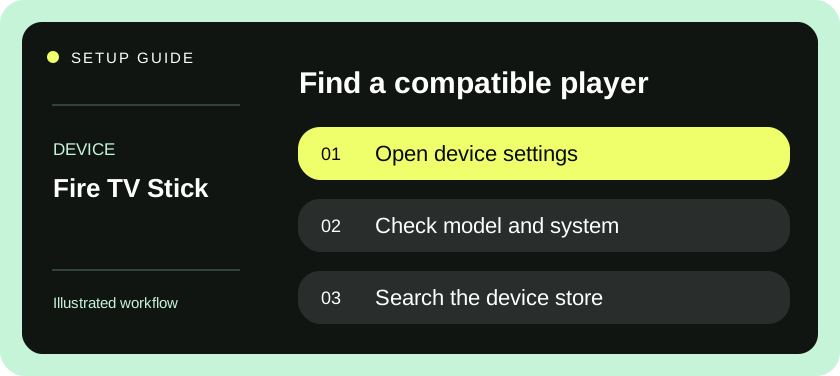
Find the model in the About area of Fire TV settings and write down the model name as shown. The name printed on the television describes the display and tells support little about the stick. Different Fire TV generations can have different software and app catalogs. An installation method that worked on a friend’s older stick might be unavailable on yours. The compatible listing on your own device is the most practical first check.
Gather the minimum requirements
Have the Fire TV remote, a working internet connection, the device’s normal power supply, and access to the account used for its app store. Open a familiar streaming app to confirm the stick can reach the internet. If the stick restarts during ordinary playback, resolve the power issue before evaluating a trial. A TV USB socket may supply less power than the adapter intended for the stick.
Ask your provider which input they can issue. A playlist link is usually one long address; server login uses separate address, username and password fields. Some TV players instead show a pairing code that the provider associates with a playlist. Ask about any separate player charge before activation. A player download, a player license and a content subscription can have separate confirmation screens.
Install a compatible player
- From the Fire TV home screen, open Find or Search and enter the player’s exact name. The placement of search changes across home-screen versions. Searching from inside a video app usually searches its catalog instead of the Fire TV marketplace.
- Open the result and compare its publisher, listed price and device requirements with the details supplied by support. If two apps have similar names, confirm the publisher before entering a subscription password. Review the available screenshots for the login method you need.
- Select Get or Download and allow installation to finish. Open the app from its listing the first time. If the marketplace only offers delivery to a different device, stop there and ask for a compatible alternative on this stick.
- Select the appropriate input method. For a playlist link, copy the entire address using the input method you trust. For a server login, put the host, including any supplied port, in the server field and enter the username and password separately.
- Save one clearly named profile and wait for the first import. On a pairing-based app, share the requested identifier privately with support, then use the player’s playlist refresh function after support confirms the association. Creating several profiles makes later diagnosis harder.
- Open a live item, return to the list, and select an unrelated second item. After a few minutes, press Home, reopen the player and check that the profile is still available. This catches a setup that works only until the app closes.
Make the remote work for daily viewing
Try the directional pad, Select and Back while someone else in the household watches. Can they reach the channel list without exiting to the Fire TV home screen? Find the player’s favorite action and add one item as a test. Some apps put this in a context menu, others in the details page. Follow the hints in that player instead of assuming a long press always performs the same action.
Set subtitles and audio language on one item that actually offers multiple tracks. Change to another item and check what the app remembers. If a track is absent from the menu for only one channel, note its name and time. Changing the stick’s system language will not create a subtitle track that the source does not carry. This short check is more revealing than trying every item once.
Test a stick hidden behind the screen
An HDMI stick often sits inches from metal and farther from the router than the phone you used for a speed test. Judge playback at the stick’s location during your normal viewing hour. Start with a lower-resolution feed if the provider supplies one, then test the higher-resolution option. Observe time to first picture, pauses after startup, and whether the remote remains responsive. Record each symptom separately.
If positioning looks relevant, try the extender supplied with the stick when available. Change one thing and replay the same feed for the same length of time. A quick successful start after several changes does not reveal which change helped. If an unrelated app also pauses, tell support that observation before asking them to replace the playlist. If other apps run smoothly and only one item pauses, give the provider that item’s name and timestamp.
Match the symptom to the next check
| What appears on screen | First useful check |
|---|---|
| Search returns only films or series | Return to the Fire TV home screen and search the store. |
| Player opens but there are no groups | Check the profile type and whether the provider has linked this player. |
| App becomes slow while importing | Let the first import finish and ask whether a smaller list is available. |
| Guide is empty but live pictures play | Check whether a separate guide address or refresh is required. |
| Stick returns to its startup logo | Check the power supply and behavior in another app before editing credentials. |
| A second television stops playback | End the first session and confirm the account’s simultaneous-stream allowance. |
A reset can remove apps and make you re-enter multiple account credentials. Before changing storage settings, distinguish clearing a temporary cache from removing application data. Save your private setup details somewhere you can access without the stick. If only one player misbehaves, start by closing and reopening it and checking its store listing for an update. A whole-device reset is a poor first experiment for a single missing channel.
Hand the setup over to another viewer
Leave a short note with the name of the HDMI input, the remote that opens it, and the name of the installed player. Keep the full playlist URL off the note; it can contain access credentials. Ask the next viewer to start from the television switched off and reach one favorite without your help. If a soundbar or receiver is involved, include which input it needs as well.
Before buying a longer term, ask support how renewal affects the saved profile and whether moving to a replacement stick changes the player license. The answer can differ between a server login and a device-paired player. Record the trial end time with its time zone and leave enough time to check your most-used features before that deadline.
Record the working combination
Make a private note of the stick model, television input and player publisher after the final test. Include the date and whether you used pairing or a direct login. When a later update moves a menu or changes the player icon, those details will help you find the same installation without starting a second account.
Amazon describes its device-side installation sequence in Download apps on your Fire TV.
Questions & answers
Can I install the player from my TV manufacturer’s store?
Install it from the Fire TV marketplace if you want to run it on the stick. A native smart TV installation creates a separate player profile.
What if my Fire TV does not show the suggested app?
Give support the exact stick model and marketplace region and request another player available on that device.
Does pressing Home end the active stream?
Background behavior varies by player. Use its stop or exit control before opening another device on a single-stream account.