
Updated November 18, 2026 · IPTV Stream Provider Team

HOT Player on Mac
Open the App Store listing on your Mac and check Compatibility for your hardware and macOS version. Select Get if your Mac is supported.
Check the Mac App Store listing ↗After installation — open Settings or Info in HOT Player and scan the QR code to add your authorized playlist. Player activation and streaming subscriptions are separate.
Decide how your Mac will be used
IPTV on Mac can mean watching on the built-in screen, sending video to a desktop monitor or connecting a laptop to a living-room television. Set up the Mac in the arrangement you intend to use. An app that works on the laptop speakers may appear silent after a monitor takes over audio output. A stream that stops when the lid closes may involve the computer’s sleep behavior rather than a lost service connection.
Open About This Mac to identify the macOS version and hardware. When downloading a desktop player, select a compatible macOS build from its publisher. Applications advertised for iPhone or iPad may not offer the same desktop features even if you can find a listing through your Apple Account. Look for the actual desktop app, check its requirements and decide whether a simple playlist viewer or a full guide interface is important.
Choose a playlist or server-login workflow
If the provider sent one URL, ask whether it opens a full catalog or only a single stream. A generic desktop media player such as VLC can open compatible network locations or local playlist files. If you instead receive a server address and separate username and password, ask which Mac player supports that login, or request a direct playlist link. Avoid guessing how the server combines those credentials into an address.
Store the original message in a private place. A full playlist link can grant access to your account and can appear in recent-file lists or app histories. If you share your Mac, use your own macOS user account or review how the player stores recent items. The name you assign a playlist is for your convenience. It should identify the profile without including its actual username, password or account key.
Open the first feed in desktop VLC
- Download the macOS version from VideoLAN’s official site. Open the disk image if that is the format provided and follow the instructions to install the application. Launch the installed copy from Applications so you can find the same copy later.
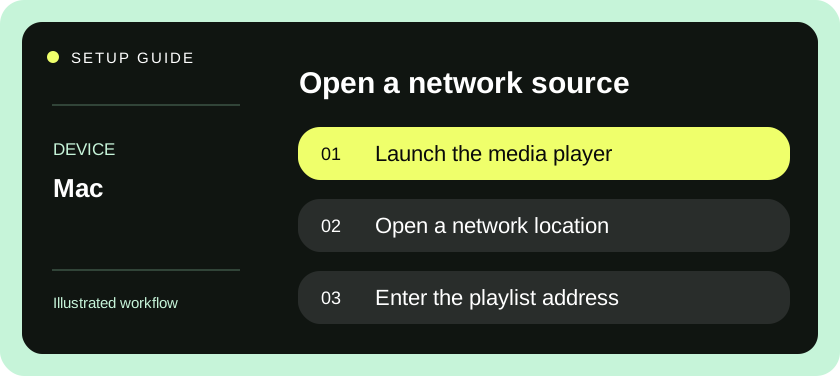
- For a network playlist, select File and the Open Network option in VLC. Paste the entire provider-supplied address into the network location field and open it. Check for a trailing space introduced when copying from a formatted message.
- For a local playlist, open the File menu and choose Open File. Select the original playlist from Finder. Confirm the file is a playlist and not a web page saved from your browser or a screenshot of the access details.
- If the playlist includes multiple entries, open its list view and choose one. Give the stream time to start, then switch to an unrelated entry. Note whether failure follows one item or affects every entry in the same way.
- Open audio and subtitle controls and inspect the tracks available on that item. Switch to full screen, exit again and repeat with the Mac connected to the display and speakers you commonly use. Check that volume adjustments affect the intended output.
- Stop playback and reopen the app. Verify that you know how to reload the correct profile without exposing the URL on a shared desktop. Before testing an iPhone or a second Mac with the same account, stop the first session completely.
Test your external monitor and sound route
Connect the adapter and display normally, then inspect macOS display and sound settings. A monitor may show an image without producing sound even if macOS lists it as an audio destination. Try the Mac’s internal speakers or the speakers you usually use, and play familiar audio in another app. If both apps are silent through the same destination, solve the output selection first. If silence follows one stream, note its audio tracks instead.
Watch a short sequence full screen at the external monitor’s usual resolution. A high-resolution desktop signal carries both the interface and the video window, so it does not prove that the source is equally detailed. Inspect the stream information when available. Compare identical material on the built-in and external displays, with the same source selected. A larger picture viewed up close can reveal compression that is less visible on a laptop screen.
Check behavior on a MacBook during a longer session
Try playback first with the lid open and the Mac awake. If you use an external display with the lid closed, test your normal power, keyboard and display configuration separately. Closing the lid or letting the system sleep changes the conditions of the test. A trial viewed on battery with low screen brightness can behave differently when the same machine is connected to a dock and powering accessories.
If a Bluetooth headset pauses or disconnects, test the built-in speakers before changing the playlist. If playback pauses when other devices use the network, compare the same feed on a wired connection using an adapter if one is already available. Record when the symptom began and whether it affects a second source. These checks let support distinguish the profile, playback app, display chain and network without asking you to erase the whole setup.
Common macOS setup problems
| What you observe | First investigation |
|---|---|
| Playlist opens as text in Finder | Launch the player and use Open File on the original playlist. |
| Stream opens on the wrong screen | Move the window before entering full screen and check the desktop arrangement. |
| Output becomes silent after docking | Select the intended audio destination and test another app. |
| No guide or favorites appear | Check whether your chosen desktop player supports those features. |
| A single stream looks soft in full screen | Compare source information and a second item at the same window size. |
| The session ends after closing the lid | Test with the Mac awake and review the intended external-display configuration. |
If you need a television-style electronic program guide, choose a player that expressly supports your guide format and mapping. A remote playlist may update channel addresses at import time; a copy saved in Finder may still reference old entries after the provider changes them. Ask how frequently you should refresh, and avoid saving a newly renamed copy every time you reopen the player. Multiple versions make it harder to identify which file produced a fault.
Before a renewal, confirm whether the same login will continue working. If you change Macs, transfer the private service details separately from the application itself and remove the profile from a computer you are selling. Keep a record of the player name and version for support.
Compare power and network changes separately
If a MacBook works on a desk but struggles in another room, identify everything that changed when you moved it. Leaving a dock can switch from Ethernet to Wi-Fi, disconnect an external display, alter the selected sound device and move the Mac onto battery power at the same time. Reproduce the issue with the lid open and the same item selected. Write down whether the image froze, the sound moved or the player stopped entirely.
Return the Mac to the desk and repeat one change at a time where practical. For example, keep the screen and power adapter connected while briefly comparing Wi-Fi and Ethernet. Stop competing playback sessions between tests. A consistent difference between two network paths gives support a concrete observation; a one-off pause immediately after disconnecting a dock calls for a repeat test before drawing conclusions.
VideoLAN provides official macOS downloads and compatibility information.
Questions & answers
Should I install an iPhone player on my Mac?
Choose a publisher-supported Mac app when desktop features matter. Check the actual macOS compatibility and feature list before purchasing.
Can I play an M3U file while offline?
You can open a local playlist offline, but network streams referenced by that list still need an active connection.
Why did sound move when I attached a monitor?
macOS can select a connected display or dock as an output device. Check Sound settings and compare another app before changing the playlist.