
Updated November 18, 2026 · IPTV Stream Provider Team

HOT Player on Windows PC
Open the official Microsoft Store listing, choose the install option and launch Hot Player from Start once installation finishes.
Get it from Microsoft Store ↗After installation — open Settings or Info in HOT Player and scan the QR code to add your authorized playlist. Player activation and streaming subscriptions are separate.
Choose a desktop setup that fits your viewing habits
IPTV on Windows PC can be as simple as opening a playlist in a media player. It can also involve a dedicated television-style app with a schedule grid and favorites. Decide which experience you need before signing up for paid software. If you mainly want to check whether a provider-issued URL plays on a laptop, a general media player is a straightforward starting point. If you need a guide and household profiles, check those features individually.
Have the Windows computer connected to a familiar network. Find its Windows version and check whether you are allowed to install applications. A work or school computer may restrict software and network access; use your own equipment for personal viewing when required. Also identify your normal output: laptop speakers, a Bluetooth headset, an external monitor or a television over HDMI. Video and audio can go to different places after an external display is attached.
Identify the file or link you received
A local M3U or M3U8 file contains text that points a player toward media items. Opening that file does not mean the broadcasts were downloaded onto your computer. A network playlist URL retrieves a list from a server. Some URLs identify a single stream instead. If opening the link plays just one feed and no catalog appears, ask the provider whether you were given a single item or the full playlist.
A message containing only a host, username and password needs a player that supports that login workflow, or a playlist link issued by the provider. Avoid constructing addresses by guessing a provider’s URL structure. Keep a private copy of the original instructions and remove any displayed credentials from screenshots. A desktop screen recording can capture the address bar, clipboard suggestions and recent-item menus even when the video itself contains no personal information.
Open a playlist and test it in VLC
- Go to VideoLAN’s Windows download page if you need VLC. Select the build offered for your Windows system, complete installation and open the desktop application. Verify the publisher when choosing an installer and avoid unrelated download advertisements.
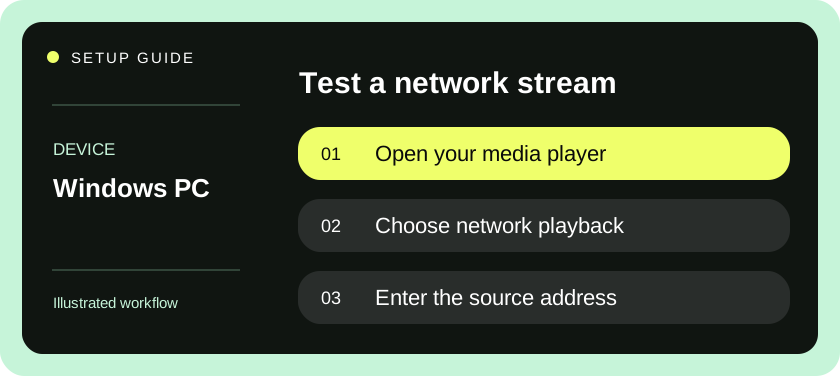
- For an address supplied by the provider, open Media, then Open Network Stream. Paste the complete URL into the network field and select Play. Make sure the value does not include quotation marks from the original message.
- For a local playlist, use Media, then Open File and select the saved playlist. If file extensions are hidden, check its type in File Explorer so you do not accidentally open a text description or a browser shortcut with a similar name.
- Show the playlist from the View menu when working with multiple entries. Select an item you recognize and then another from a different part of the list. A large imported list can take a moment to populate; avoid opening multiple instances while waiting.
- Test the audio output and subtitle menu on material that contains the relevant tracks. If testing an external display, move the window to that display, enter full screen and check that sound is coming from the intended speakers.
- Stop playback before starting the same account elsewhere. Reopen the player and verify how you will retrieve the playlist next time. If you use a shared Windows account, review recent-media behavior before leaving a private playlist URL in its history.
Distinguish schedule features from playback features
A general media player can open supported streams without offering a television-style guide associated with every channel. If scheduling, favorites and filtering are essential, choose a dedicated Windows player that explicitly supports the guide format your provider sends. Ask whether a separate guide URL is needed. A working playlist proves that entries can be loaded; it does not prove that every entry has schedule data.
When comparing players, use the same item and test sequentially. End the first session before launching the second, especially on a single-connection plan. Record the time to first picture, what happens when you switch items and whether text is legible from your usual seat. A laptop often looks fine at arm’s length while a desktop app projected onto a distant TV requires larger controls.
Check sound and external displays
Connect HDMI before starting the player when possible and inspect the selected Windows sound output. An external monitor can advertise an audio device even when no working speakers are attached. If sound disappears only after plugging in a display, test ordinary Windows audio first. If that also goes silent, choose the intended output and retest. If only one feed lacks sound, review the player’s track choices and compare a second item.
For picture problems, describe the symptom precisely. A small image with black borders can reflect the source aspect ratio, while blurred text across the entire desktop may involve the Windows display settings. Compare the player in a window and in full screen, then inspect the external display’s resolution and scaling. Stretching a program to fill the screen can crop subtitles or distort faces, so make deliberate changes that another viewer can reverse.
Work through common Windows symptoms
| Observation | Next test |
|---|---|
| File opens in a text editor | Use Open File inside the player and select the original playlist. |
| Network link returns immediately to idle | Check full URL, account validity and whether any item opens separately. |
| First entry plays but no categories appear | Inspect the playlist view and ask which catalog format the provider issued. |
| Picture works and desktop audio is silent | Select the intended Windows output and test another application. |
| Laptop stops while connected to a TV | Check normal sleep and lid behavior for the intended viewing arrangement. |
| Phone works but the PC does not | Stop the phone stream and compare networks and login formats. |
A useful report contains the player version, the source type, the exact visible error and whether another item worked on the same network. If Windows asks for permission unrelated to opening the stream, read the prompt before making a broad change. A normal player test does not require turning off device protection. If policy blocks a managed computer, contact its administrator or use your own device.
Keep the setup portable
Store your original playlist securely and label local copies with a date if the provider rotates them. A saved local file can grow stale after a lineup change, while a remote playlist may retrieve changes on the next import. Ask which renewal behavior applies to your account. Before replacing a PC, verify that the new player supports the same input format and sign out on the old one if the computer will change hands.
Decide whether to keep a local copy
When the provider issues both a file and a URL, compare how you want to reopen the catalog. A local file is convenient when you already organize media shortcuts in a private Windows account. A remote URL may be simpler when addresses change regularly. Give each a distinct display name during testing and confirm with the provider which one should be used after renewal. Delete outdated private copies from shared Downloads folders once you have a secure replacement.
If you use Windows search or a recent-items list to launch the file, verify it points to the intended copy after a lineup refresh. Opening an old file by habit can bring back retired entries even though the new list worked minutes earlier. Record the source type in your support message so the provider can tell whether you imported its current catalog.
Use VideoLAN’s official Windows download page for desktop VLC.
Questions & answers
Do I need to download each channel to my PC?
A playlist points the player to live or on-demand media. A local copy of the list usually does not contain the videos themselves.
Why is there no television schedule in VLC?
Opening a network playlist and displaying a mapped program guide are different functions. Choose a compatible guide-based player if schedules are important.
What if the service sent a username and password only?
Ask for the complete supported login instructions, including the server address, or request a playlist link suitable for your desktop player.