
Updated November 18, 2026 · IPTV Stream Provider Team

HOT Player on MAG box
Check the operating system printed in your model information. For an Android-based model, follow the Android TV instructions. For a Linux MAG box, the publisher lists no native installer; follow the MAG portal setup guide.
Read the MAG setup guide ↗Confirm which MAG box you own
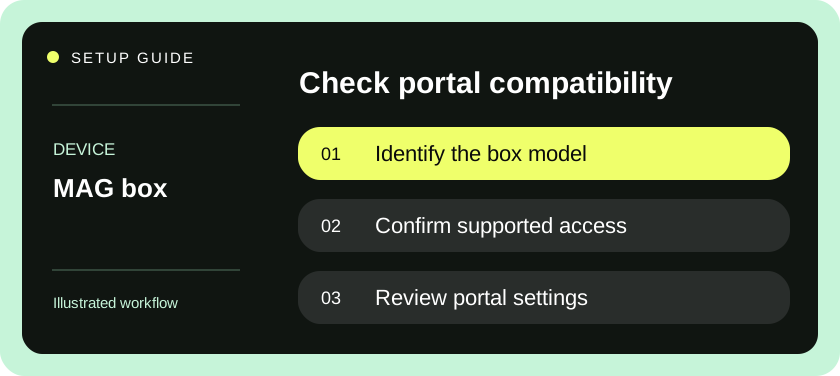
IPTV on MAG box hardware can use an external portal supplied by a service operator. The model and software family determine which setup instructions apply. Read the model label on the box and compare it with Infomir’s documentation for that series. A MAG device running a different operating system, an operator-customized unit and a standard Linux/WebKit model can show different menus. This walkthrough covers the external-portal approach on a compatible, user-configurable box.
If the box was provided by an existing operator, establish who owns it and whether changing its settings is permitted. A locked or managed unit may need assistance from that operator. If you only want to evaluate another service, consider using a separate compatible device instead of interrupting a working household setup. Do not remove an existing portal until you know how to return to it and have permission to make the change.
Ask for a portal address and model confirmation
Send support the exact model and ask whether it supports that model’s portal workflow. A generic list of compatible TV apps does not establish that a service operates a MAG-compatible portal. Ask which device identifier is required and provide it privately from the actual box being registered. A label on a router, another box or an app running on a television identifies a different device.
Obtain the full portal URL directly from the provider. A portal address, a downloadable M3U playlist and a server-login form are different entry points. Pasting an M3U URL into an external portal field does not turn it into a portal. Ask whether the service issues a separate portal name, whether an account has an activation delay and whether there is a deadline for a trial. Record the deadline with its time zone.
Connect the box and enter the portal
- Connect the MAG box to the television over the intended HDMI path, connect its normal power supply and connect it to your network. Select the correct television input. If the display is blank before any menus appear, check the source selection and connections first.
- Open the embedded settings or system settings supported by your exact model. Locate the server or portal configuration described in the manufacturer’s documentation. If the device opens directly into an operator interface and offers no settings access, ask the operator or provider how that unit is managed.
- Record the previous portal name and address privately when permitted. If the model provides multiple portal slots and a spare slot is available, use it for the trial. Keep the original as a fallback and give the test entry a label that identifies its purpose.
- Enter the full authorized portal address exactly as provided. Preserve the scheme, host, port and any path. Check for spaces at the beginning or end. Save the setting, then follow the model’s instructions to reload the portal or restart the box when required.
- Choose the newly labeled portal if the box prompts for a selection. Wait for its interface to load. If the screen says the device is unauthorized, confirm registration with the provider before editing the network settings. If it cannot reach any portal, check network connectivity separately.
- Open a live item, wait for stable sound and picture, then test navigation, the guide and a second item. End the session normally and reopen the portal to see whether it remains selectable. Keep the original portal details until you are satisfied the replacement meets your needs.
Separate the embedded interface from the external portal
The embedded portal is part of the device environment. Its settings can be accessible even when the service portal has no working connection. An external portal provides the operator-controlled interface and catalog. Being able to open system settings demonstrates that the box is responding. It does not establish that the provider has registered the device or that the remote portal has loaded successfully.
When sending a support message, describe the visible stage. “The embedded settings open, the box has a network address, and the new portal shows an authorization message” is more useful than “the box is broken.” If two portal names are saved, mention which one you selected on restart. A picture of a portal error can help, but crop out any full portal addresses, registered identifiers or credentials first.
Check the guide, remote and display together
Use the remote supplied with the box to open a schedule, return to live playback and switch to another item. The television remote may control power and volume without exposing the portal’s full navigation. Confirm that the controls work from the place the household normally sits. If a particular key does nothing, compare its behavior in the embedded interface and the external portal. The portal can assign functions differently from the local menus.
Check the device clock and time zone before applying any offset inside a guide. If all listings are shifted by exactly one hour, collect an example with the displayed time, actual local time and program name. If only one listing is wrong and neighboring items match, report that specific entry. In either case, avoid changing the portal address as a first response to a schedule problem when live playback already works.
Resolve the most common portal symptoms
| Visible result | Check next |
|---|---|
| No menus and no HDMI picture | Confirm power, HDMI input and display connection before changing a portal. |
| Embedded menu works, external portal never opens | Verify internet connectivity and the full supported portal address. |
| A clear authorization error appears | Ask support to confirm registration of this exact box and its trial status. |
| Previous service opens again after restart | Confirm the default or selected portal and distinguish saved slot names. |
| Live picture plays but schedules are shifted | Check time zone and gather a timed example before changing guide settings. |
| Portal settings are unavailable | Confirm operator ownership and whether this model permits user changes. |
A reset can remove the details needed to restore a working operator setup. Ask the box owner and the provider before considering it. An authorization refusal is especially unlikely to be solved by erasing your settings when registration happens at the provider. Keep the box on its supported software path and avoid installing a firmware image intended for another model merely because their external cases look alike.
Keep a recovery note
Keep the model, chosen portal label, provider contact, approximate setup date and renewal date together in a private record. When moving to another box, ask whether the provider must move the registration to the replacement. Stop using the old unit before testing the new one if your account has a single simultaneous stream. If a trial ends without a purchase, return to the original saved portal, confirm it still works and remove the test slot if appropriate.
Check what happens after a power interruption
Once the trial portal works, restart through the device’s normal menu and watch which portal opens first. If the original service launches automatically, note the supported selection process so a family member can reach the trial without editing addresses. If the trial becomes the default, verify that you can still select the original. This check is especially worthwhile on a shared television where a change made today must still make sense after tomorrow’s restart.
Infomir publishes separate references for MAG5xx Linux/WebKit models and MAG322/324/349/351 models.
Questions & answers
Can I enter an M3U URL as a MAG portal?
A playlist and an external portal are different inputs. Ask for a MAG-compatible portal or the model-specific instructions for playing a playlist.
What information does support need for registration?
Start with the exact model and the identifier requested for your own box. Share that information privately with the support contact you intended.
Should I erase my current portal before a trial?
Preserve its details and use a spare slot when your model and operator allow it. Confirm how to return to your original service before making changes.