
Updated November 18, 2026 · IPTV Stream Provider Team

HOT Player on LG Smart TV (webOS)
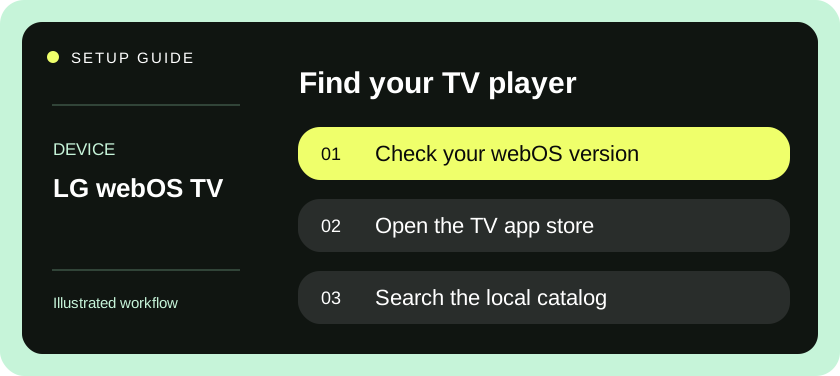
Press Home, open Apps or LG Content Store and search for HotPlayer or HOT IPTV. Match the logo, select Install and launch the app.
View official download options ↗After installation — open Settings or Info in HOT Player and scan the QR code to add your authorized playlist. Player activation and streaming subscriptions are separate.
Identify the home screen before you search
IPTV on LG TV starts in the television’s webOS interface when you want a player installed directly on the set. Press Home on the LG remote. Newer sets may show Apps, while older versions show LG Content Store. If Home opens an external streaming box, use the LG remote or the television’s input controls to return to its own home screen. Searching an attached box finds apps for that box only.
Locate the model number in the television information screen or on its rear label. Include the software version when contacting support, particularly if the same player works on a more recent LG model. Screen size alone gives little information about app availability. The catalog you see on your own set is a better compatibility check than a tutorial showing an older interface or a store listing for another country.
Choose how the playlist will reach the player
Ask whether the service provides a playlist link, separate login credentials or a pairing-based setup. For a pairing workflow, the player generates or displays an identifier after installation. The provider needs the identifier for this particular installation. A photo taken from a tablet running a similar player can accidentally associate the service with the tablet instead of your television. Label the device clearly when you send the details privately.
Ask about the app’s terms before buying a service period. Some players have their own license; its start and end dates can differ from the subscription. If an offer includes activation, ask which device gets it and whether a replacement TV can inherit it. Also confirm simultaneous playback limits if other household members plan to use mobile devices. Installing software twice and watching two streams at once are different requirements.
Install, pair and refresh on webOS
- Open Apps or LG Content Store from the home screen. Select its search icon and enter the exact player name agreed with support. The pointer on a Magic Remote and the directional keys can both be useful when selecting search results.
- Review the listing, publisher and any price displayed. Choose Install, wait for completion and launch the app. If the result has no install option, check the model, account and local availability before searching for a similar-looking alternative.
- Find the setup page inside the player. For pairing, copy the full identifier plus the device key if requested. Use the exact separators and character order shown. Keep this screen private and ask support to confirm which installation they received.
- If the player supports direct login, choose the supplied method instead. A long playlist address belongs in its URL field. For a server login, enter the host, username and password separately. Completing one method is enough for an initial test.
- After association, use the player’s playlist refresh or reload control. Wait for the list to populate before repeating the action. Open one item from a group you expect and then a second item, noting how long each takes to start.
- Return to the home screen and reopen the player. Confirm the list is still there and try adding a favorite, changing audio, opening captions and reading the guide. Test whichever controls are essential for the people using the set.
Tell app activation apart from subscription expiry
A message about player activation may come from the app publisher even while your service is active. Conversely, an activated player may be able to open its menu after your service period ends. Record the exact wording, the date displayed and the screen where it appears. Ask support to express an ambiguous numeric date with the month written out. That prevents confusion between US month-first and day-first formats.
Before renewing, ask whether your saved profile will update automatically or whether you need to refresh it. Do not routinely delete the profile to make an entitlement update appear. If the old profile remains playable on a different device, stop it there first. That makes a one-connection trial easier to evaluate and gives support a clearer distinction between access problems and simultaneous-use limits.
Check viewing from the sofa
Try switching from a live item to the guide and back without touching the pointer. Some viewers prefer the arrow keys because they offer more predictable focus movement across dense lists. Notice whether the selected row is visible from the normal seating distance and whether a favorite can be opened after a cold start. If you rely on captions, test their size and position on material that provides them.
Evaluate sound through your normal speaker setup. When only one audio track sounds wrong through a receiver, compare it through the TV speakers and note the result. When all apps lose sound after an input change, review the television’s selected output first. A useful report identifies where audio stops, which track is selected, and whether the same feed produces audio on another supported setup during a separate test.
Resolve common webOS setup issues
| Symptom | Check before changing the setup |
|---|---|
| Search cannot find the named player | Verify spelling, webOS version, region and the catalog on this TV. |
| List appears on another device only | Compare the pairing identifier sent to support with the player on the TV. |
| Refresh succeeds but nothing plays | Check trial validity, a second group and active sessions on other screens. |
| One group has no guide entries | Ask if that group has schedule data and verify the guide refresh. |
| Player repeatedly asks for payment | Identify the app license being requested and the activation device. |
| Remote pointer disappears | Try directional navigation and confirm focus remains inside the intended app. |
If reinstalling becomes necessary, first note the player publisher and any identifiers you can still see. Find your own purchase receipt or support confirmation. Reinstallation can affect local settings such as favorites, even when the provider keeps the original service account. Avoid a factory reset for one missing list until targeted actions and manufacturer guidance have been considered.
Confirm the setup survives tomorrow’s routine
Switch the TV off normally, turn it on again and start the player the same way the next viewer will. A working shortcut is often more important than a long list of features. Write the player name and how to open the guide on a household note. Keep credentials and private device keys in a separate location. If another viewer has a complaint, ask for the item, time and observed symptom before changing the setup.
Test the guide after a normal evening shutdown
Choose an item with guide information, note its current and next program, then leave the player and switch the television off as usual. On the following startup, reopen that same favorite before manually refreshing anything. Check whether the guide has advanced to the correct time and whether playback still starts. If only the schedule is stale, try the guide refresh and record the last update time the app displays.
This is also a good time to check how the app handles the Magic Remote after sleep. If the pointer takes a moment to appear, try the directional pad before exiting the screen. When writing instructions for another viewer, describe the control by its location or printed label and name the screen where it belongs. A step such as “open the guide inside the player” avoids confusion with the LG television’s own channel guide.
LG explains the different store layouts and installation steps in its webOS smart app guide.
Questions & answers
Why do I see LG Content Store instead of Apps?
LG uses different home-screen layouts by webOS generation. Open the store shown on your TV and use its search function.
Can the same pairing code activate my tablet?
Check the code displayed by each installation. Device licensing and your service’s simultaneous playback rules are separate questions for support.
What should I do if a renewal date looks wrong?
Copy the date with its screen label, ask support to write out the month and confirm whether it belongs to the player or the service.